Share Your Personal Shopping Cart
Complete step-by-step guide to sharing your cart with new AND existing customers
Complete Step-by-Step Guide
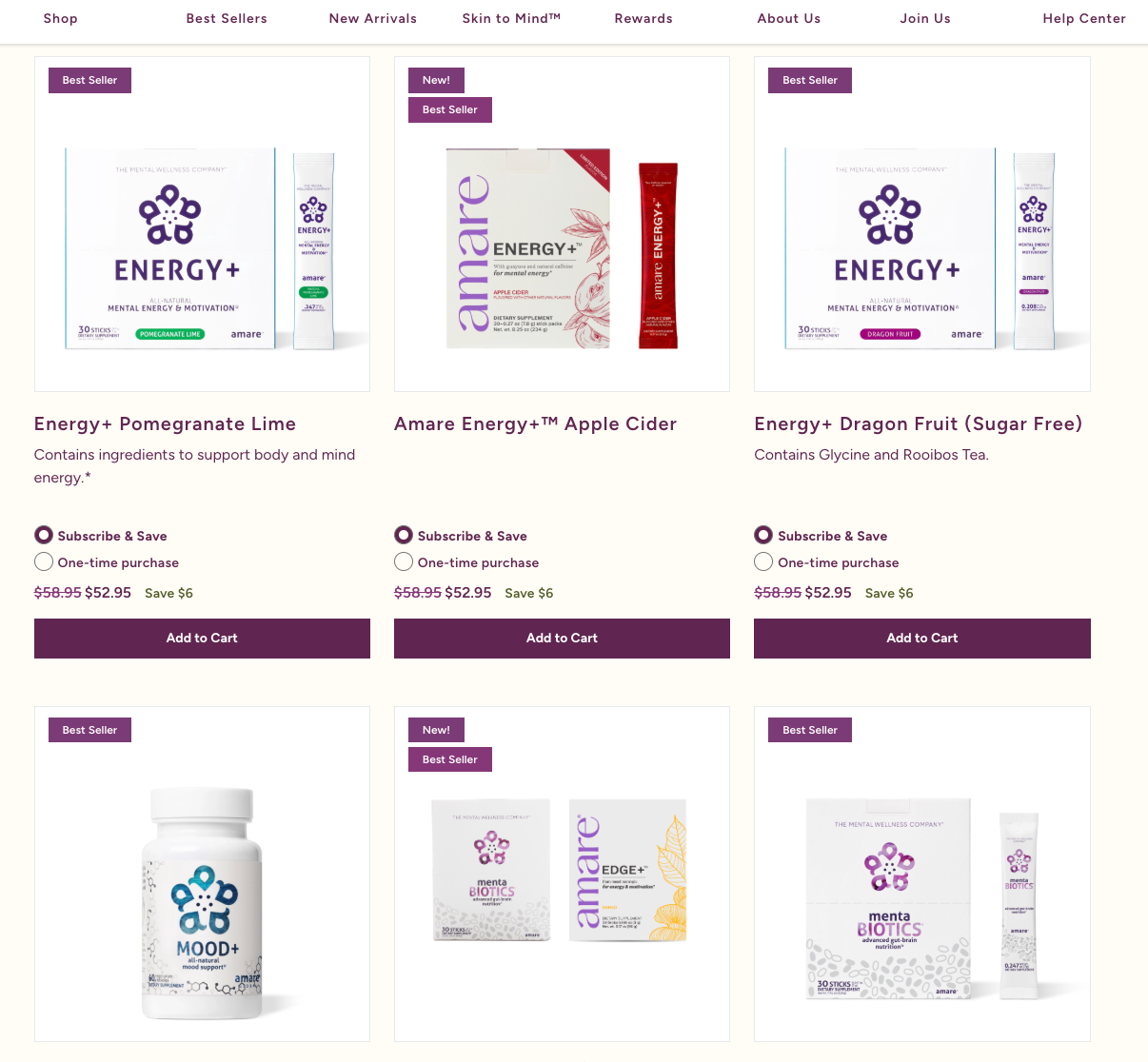
Find the products you want to share
- • Visit Amare.com and sign into your Brand Partner account
- • Browse the shop to find products you want to recommend to customers. You can also use Share-Only Mode to browse and share products from enabled markets. NEW Learn more →
- • Look for holiday specials, bundles, or individual products
Add products to your cart
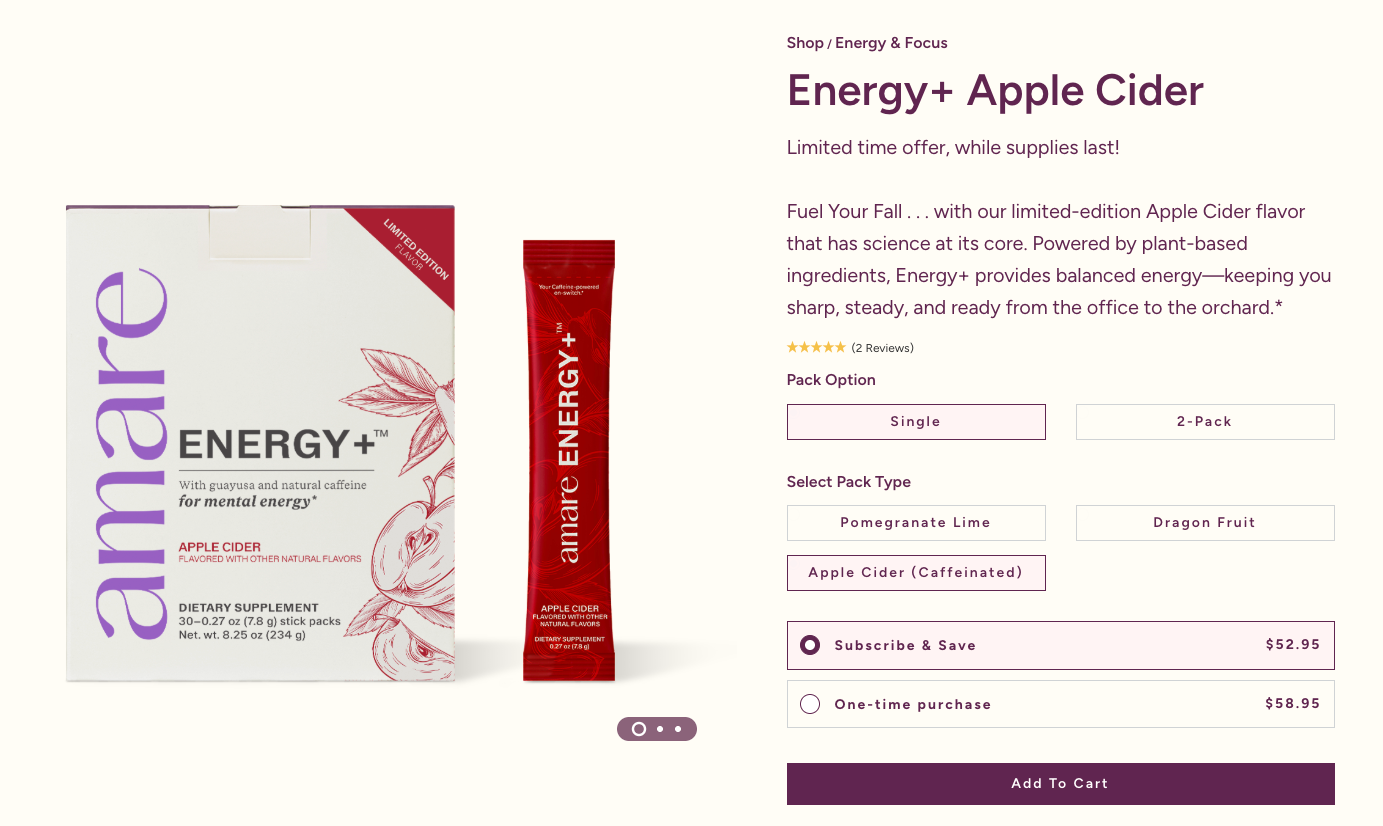
- • Click "Add to Cart" for each product you want to include
- • Add as many products as you want to recommend
- • Select Subscribe & Save options if desired
- • Adjust quantities as needed
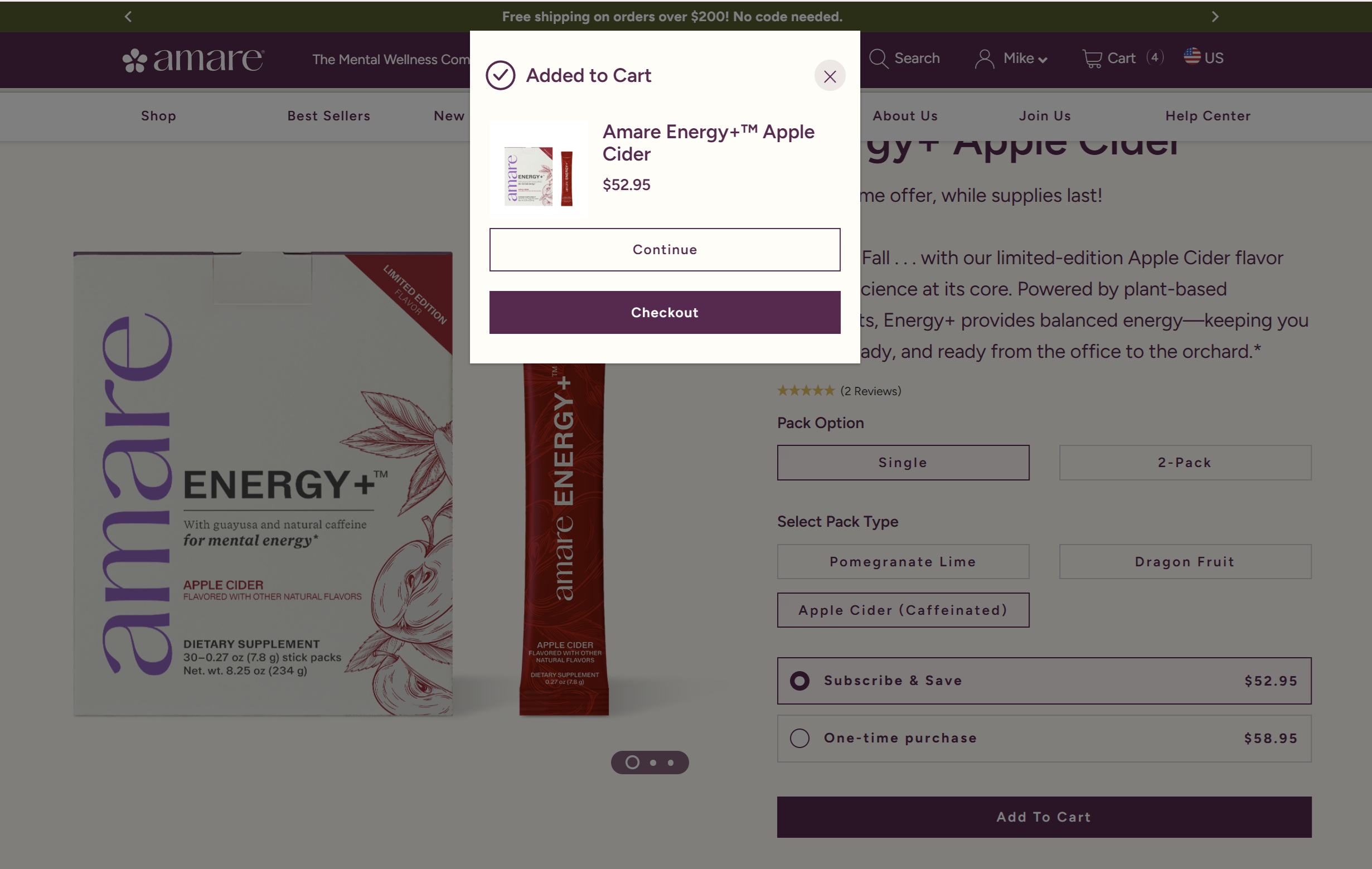
Review your cart and proceed to checkout
- • Once your cart is ready with all the items you want to share, navigate to checkout
- • Review quantities, Subscribe & Save settings, and product details
- • You can add optional promo codes if desired (standard customer codes work)
- • ⓘ Enrollment promo codes are not supported
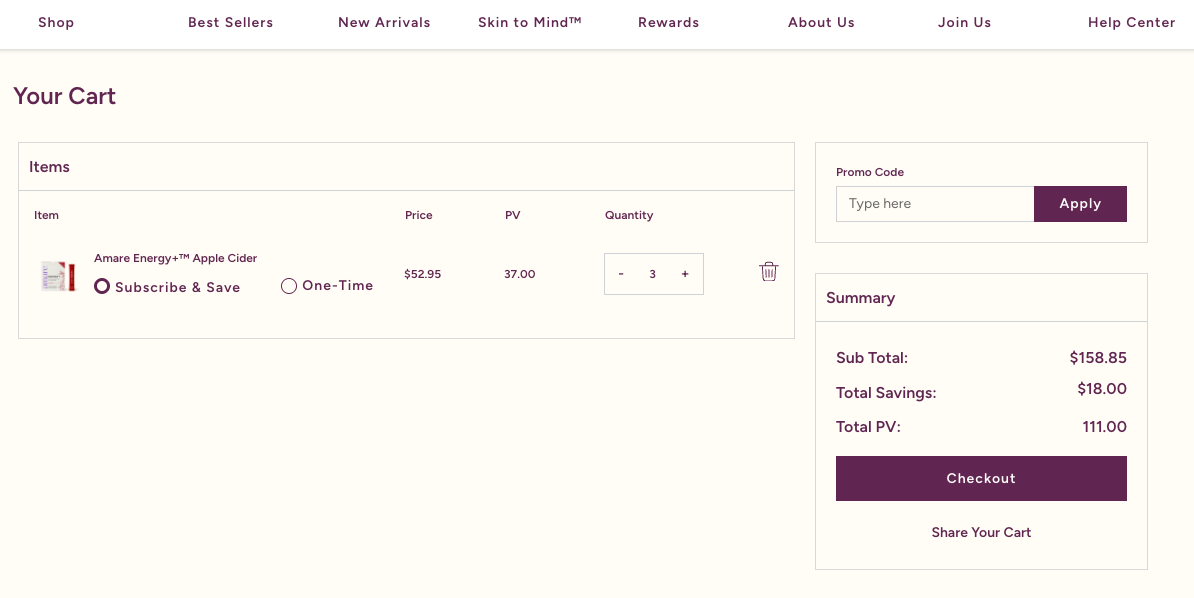
Locate the "Share Your Cart" button
- • Under the normal checkout button, look for the "Share Your Cart" option. In Share-Only Mode, the Checkout button is removed and "Share Your Cart" is the only button available. NEW Learn more →
- • This button is available only for Brand Partners
- • Click it to begin creating your shareable cart link
Create a name and description for your cart link
- • Enter a memorable cart name (e.g., "Kids Pack Link", "Energy Bundle")
- • Add a clear description of what's included
- • Examples: "1x Kids Pack", "Complete wellness starter bundle"
- • This helps your customers understand what they're getting
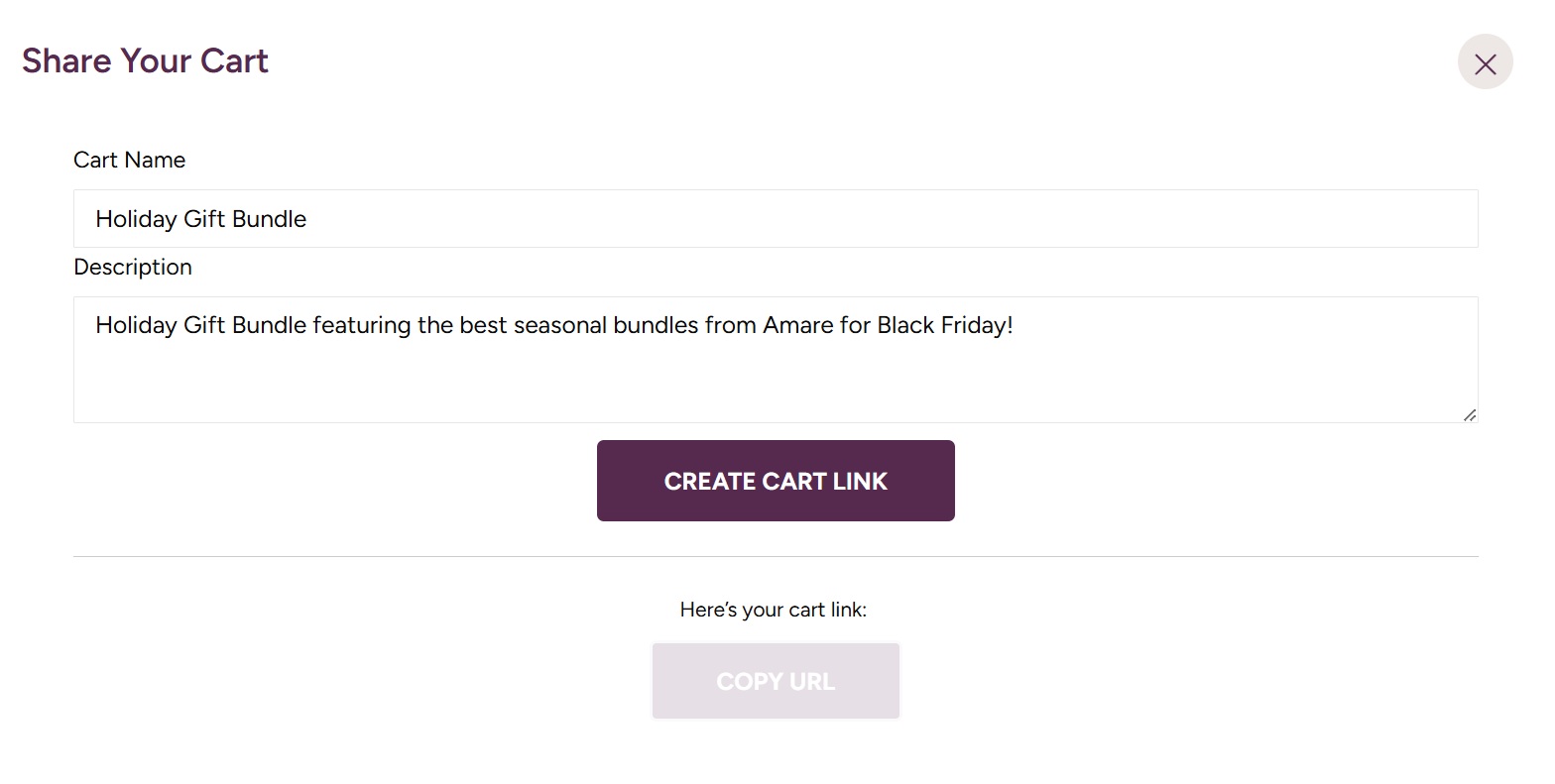
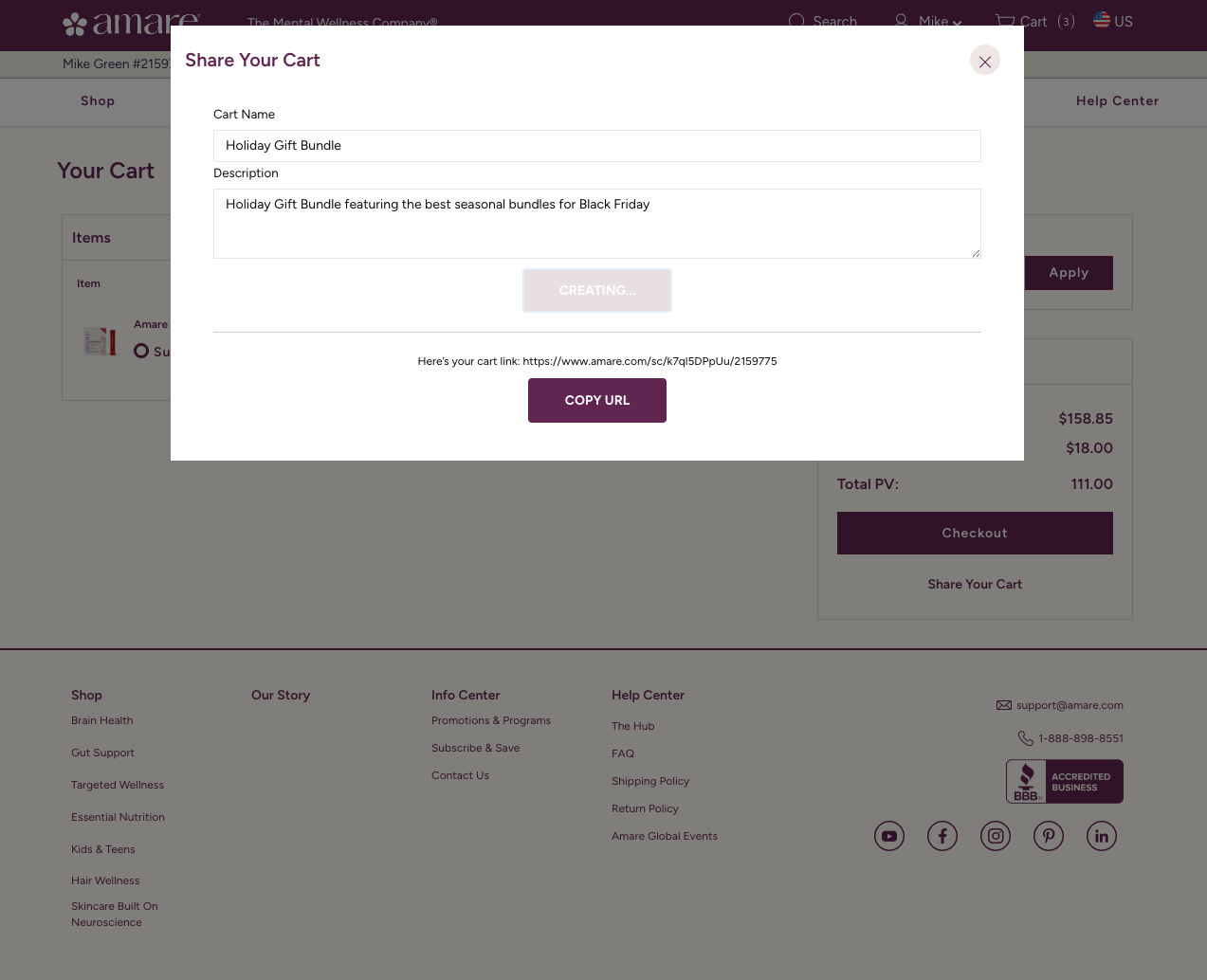
Generate and share your link
- • Click the generate button to create your unique shareable link
- • Your link includes all cart items, quantities, and settings
- • Copy the URL and share it with customers via text, email, or social media
- • ✓ Recipients can be new OR existing Amare customers
- • For new accounts, attach enrollment promo codes like WELCOME or GIVELOVE NEW Learn more →
💡 Best Use Case: Existing Customers
Share Your Personal Shopping Cart is perfect for existing customers who already have Amare accounts. It supports most promo codes except enrollment codes, making it ideal for regular reorders, product bundles, and ongoing customer relationships.
Share-Only Mode: Build Carts for Enabled Markets
A powerful new feature that lets you build and share carts for enabled markets—without affecting your primary account.
What is Share-Only Mode?
Share-Only Mode allows Brand Partners to access enabled markets and build shareable carts without being assigned to that market. This enables you to share enrollment and customer links across participating markets.
- ✓Access enabled markets via the market selector
- ✓Build carts with products and promotions specific to that market
- ✓Stay logged into your home account and return to your home market—your primary market isn't affected
How to Enter Share-Only Mode
- 1Use the market selector in the navigation to switch to an enabled market
- 2A visual banner will appear across the site indicating you're in "Share-Only Mode"
Step-by-Step Visual Guide
Market Availability
Cross-market shareable carts are currently available for markets with this feature enabled. Brand Partners in these markets can create shared carts for their own market or for other enabled markets.
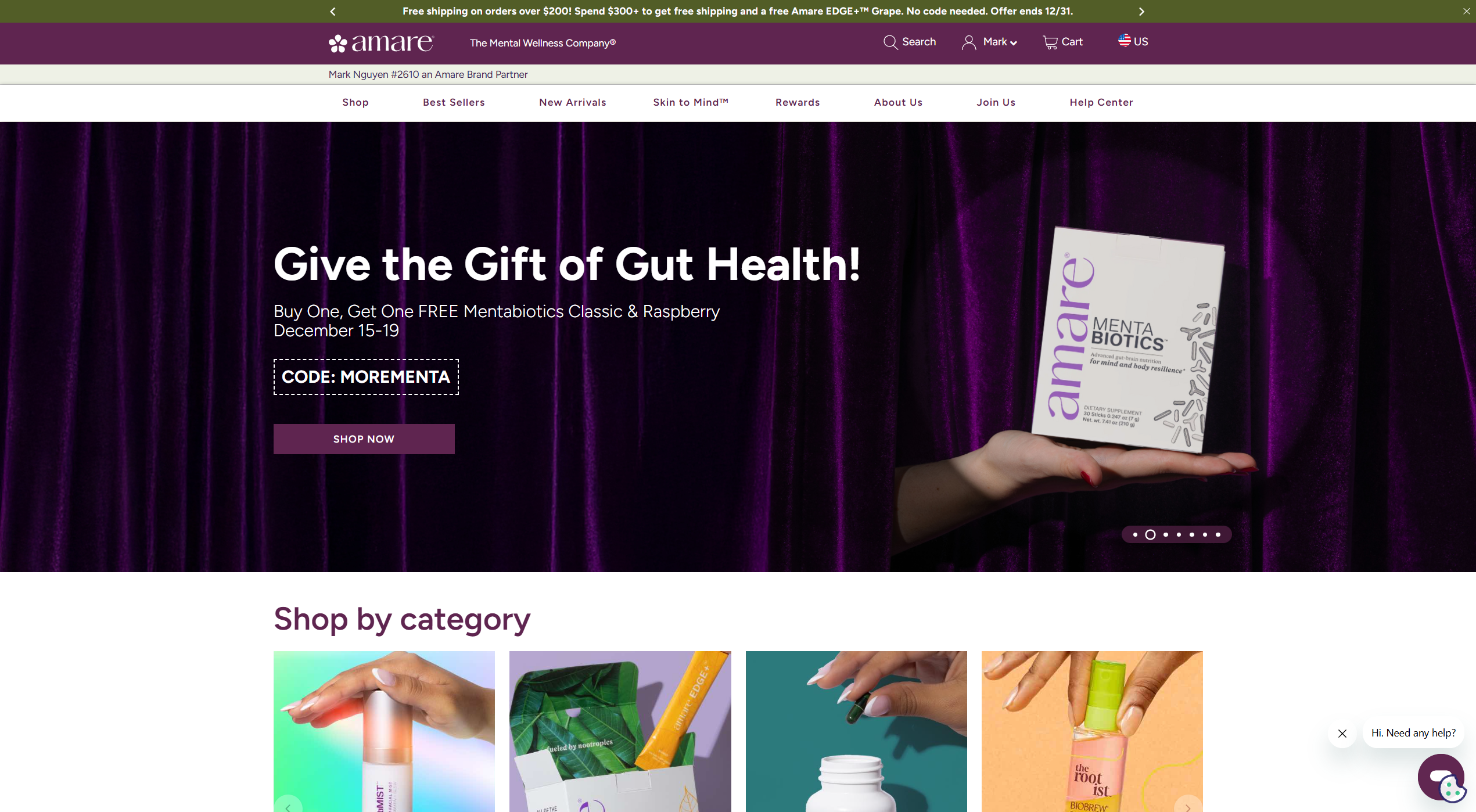
Navigate to the Market Selector
Once logged in to your account, locate the market selector in the navigation bar at the top of the page.
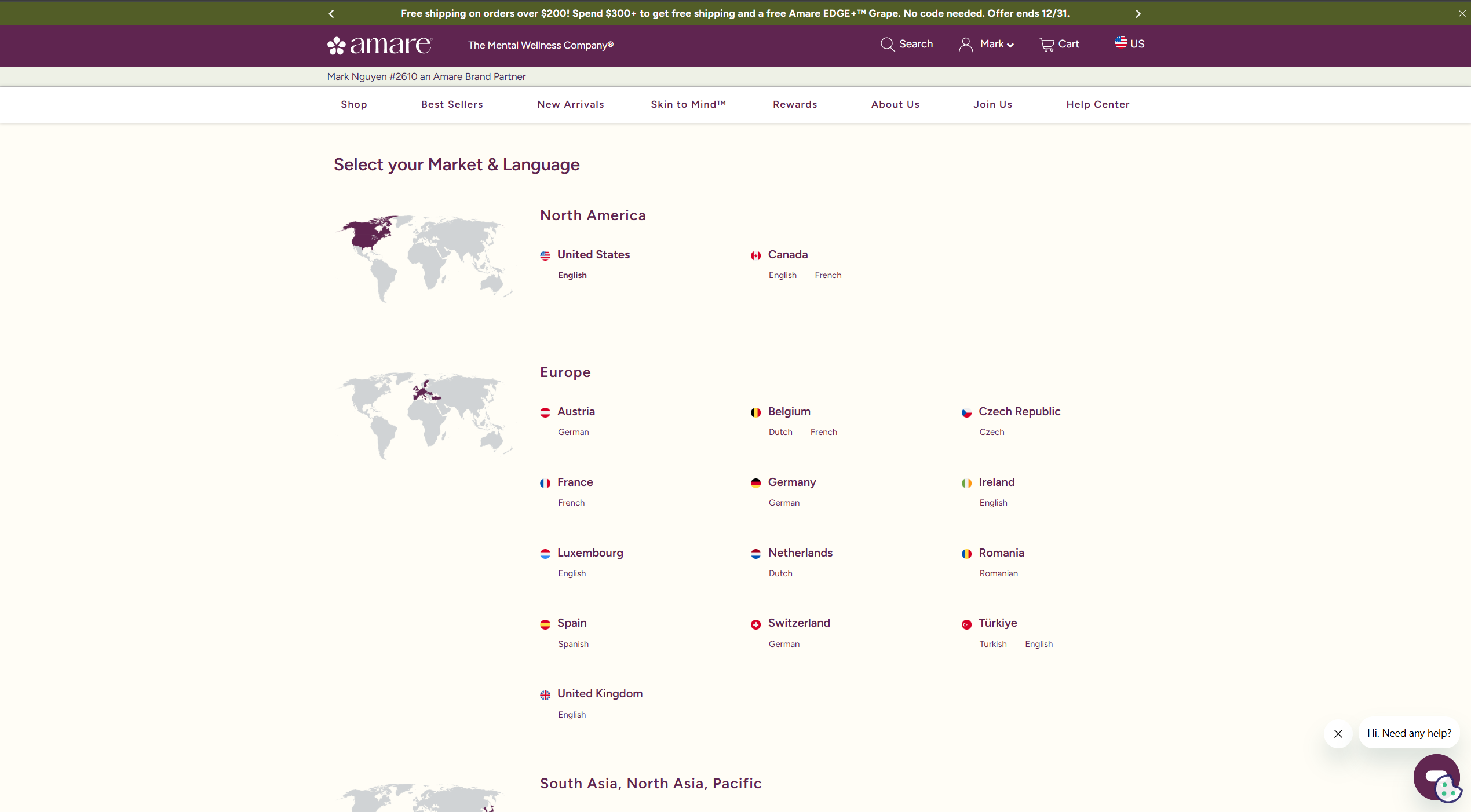
Select Your Target Market
Choose the market you want to create a cart for from the dropdown menu (e.g., Canada English).
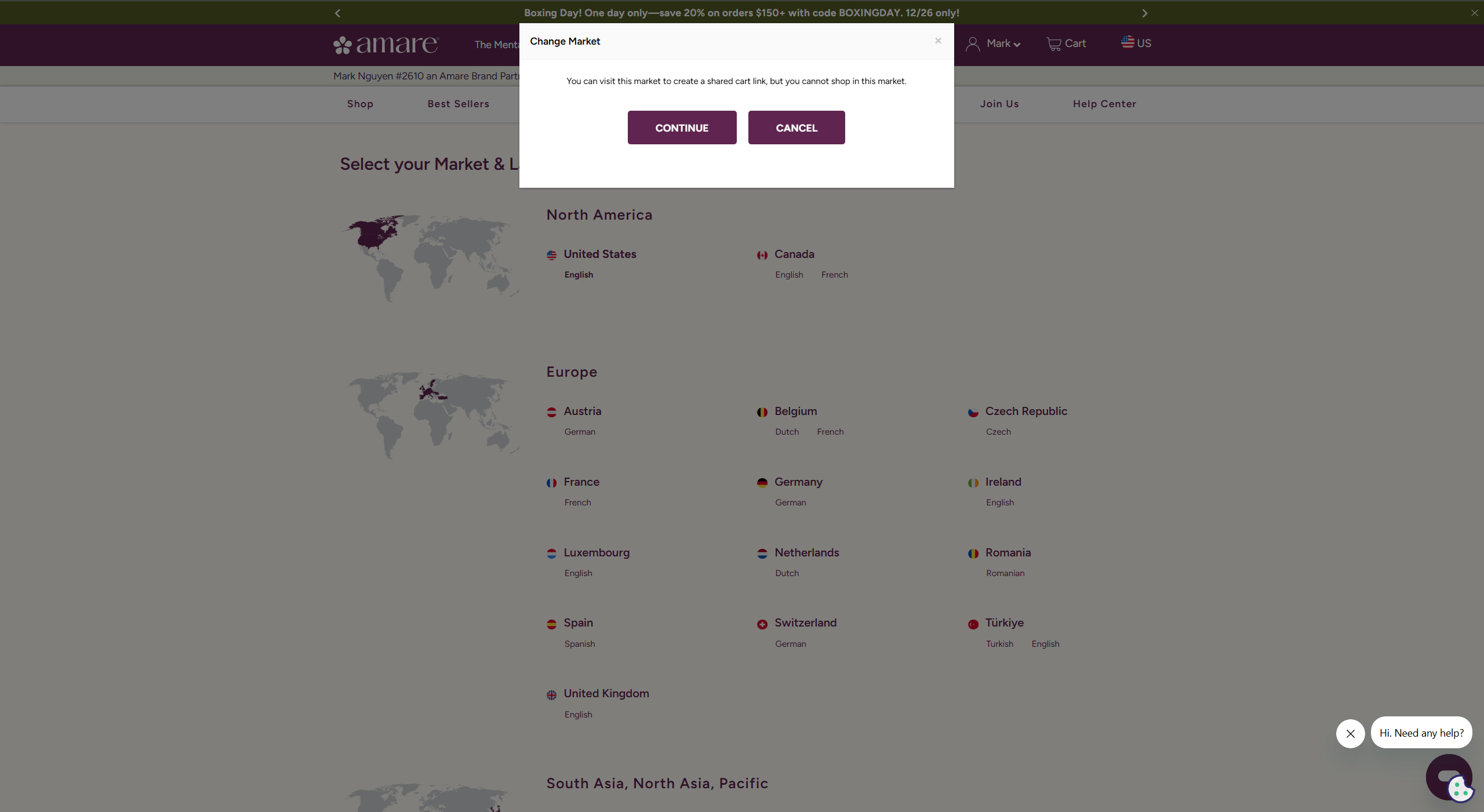
Confirm Share-Only Mode
A confirmation modal will appear. Click the "Continue" button to enter Share-Only Mode for the selected market.
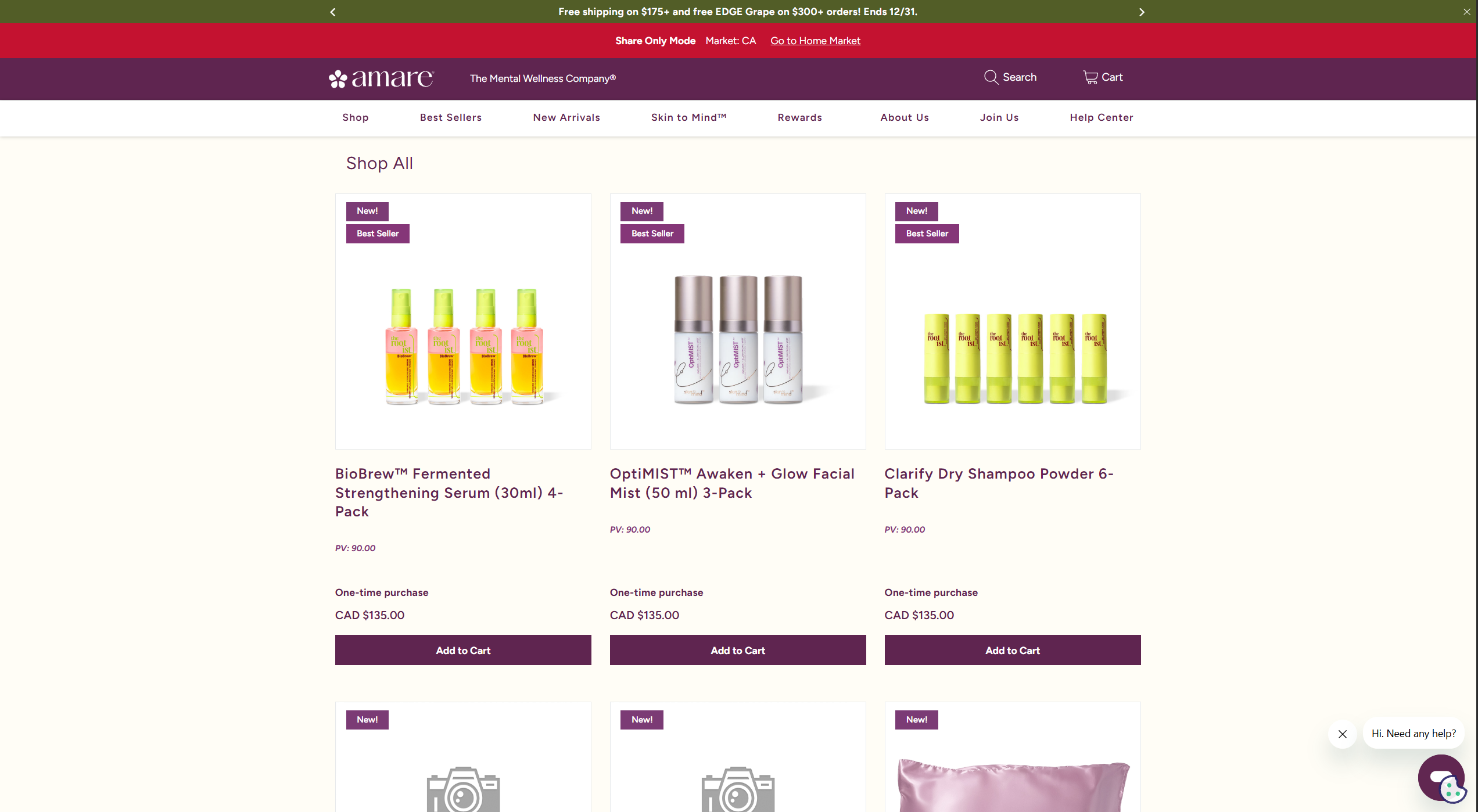
Browse the Shop in Share-Only Mode
You'll be taken to the Shop All page for your selected market. Notice the Share-Only Mode banner at the top with the "Return to Home Market" button.
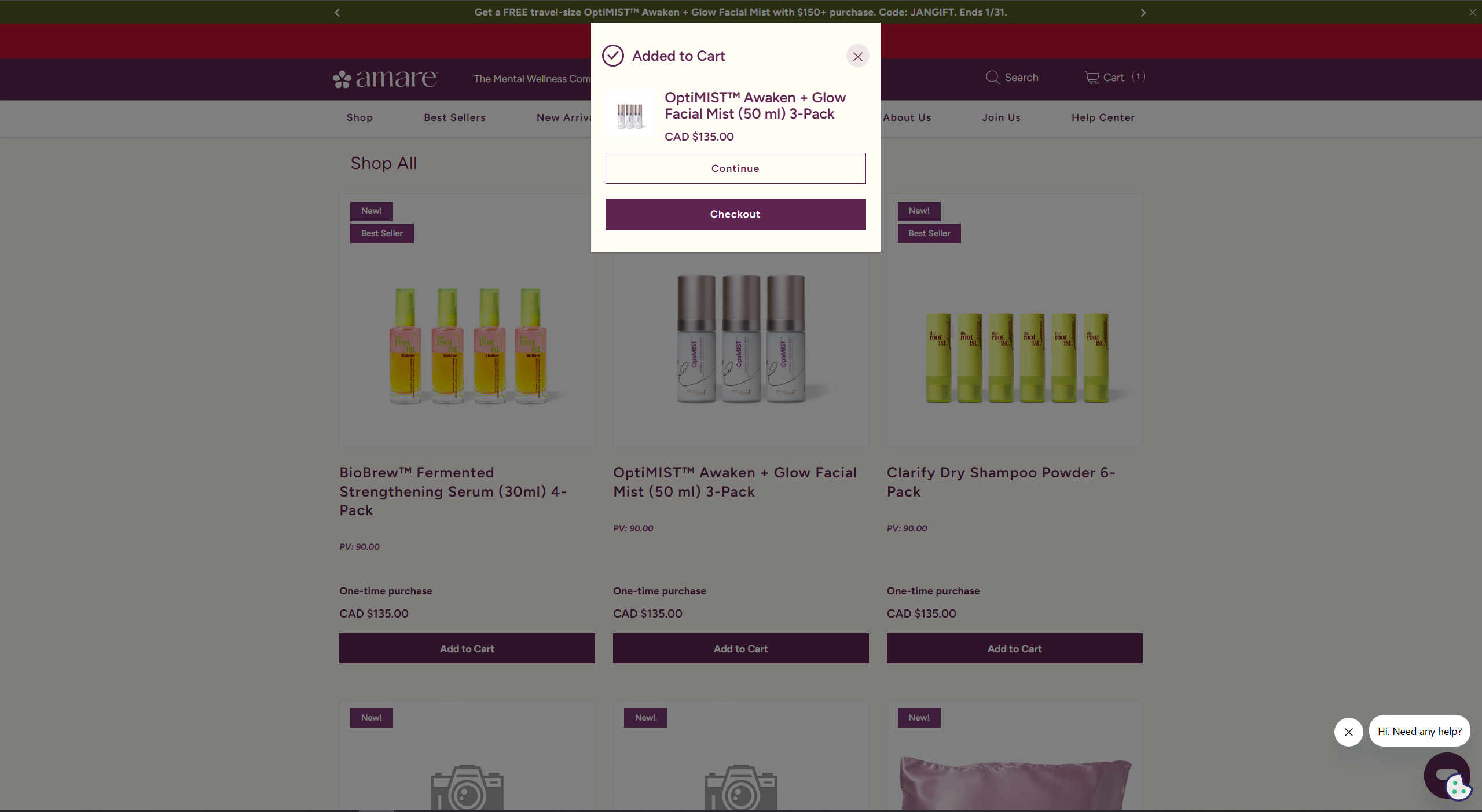
Add Products to Your Cart
Browse and select products available in that market. Add them to your cart and click "Checkout" in the cart modal when ready.
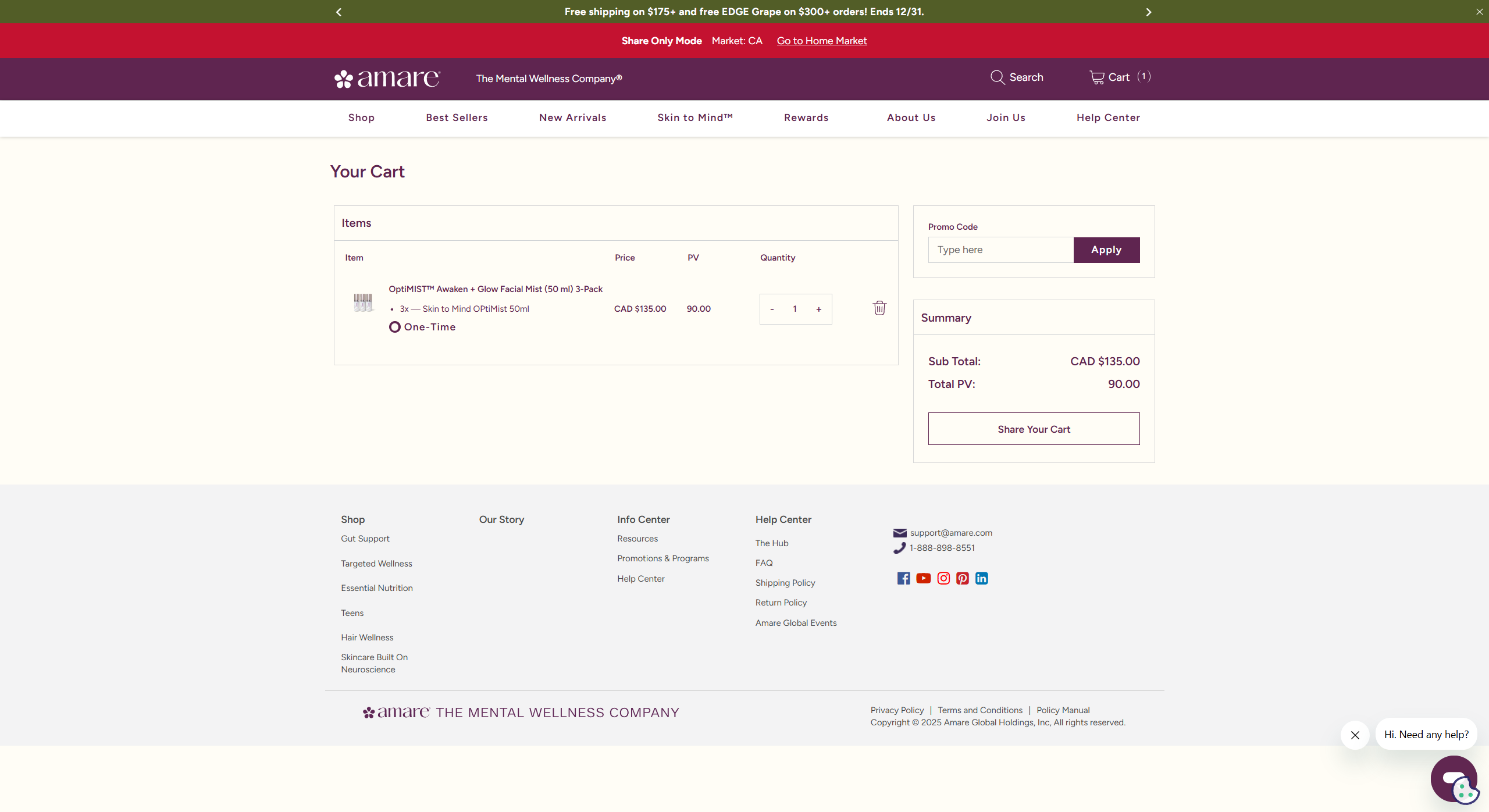
Access the Share Cart Button
On the cart page, you'll notice there's only a "Share Cart" button available—checkout is disabled in Share-Only Mode to protect your account.
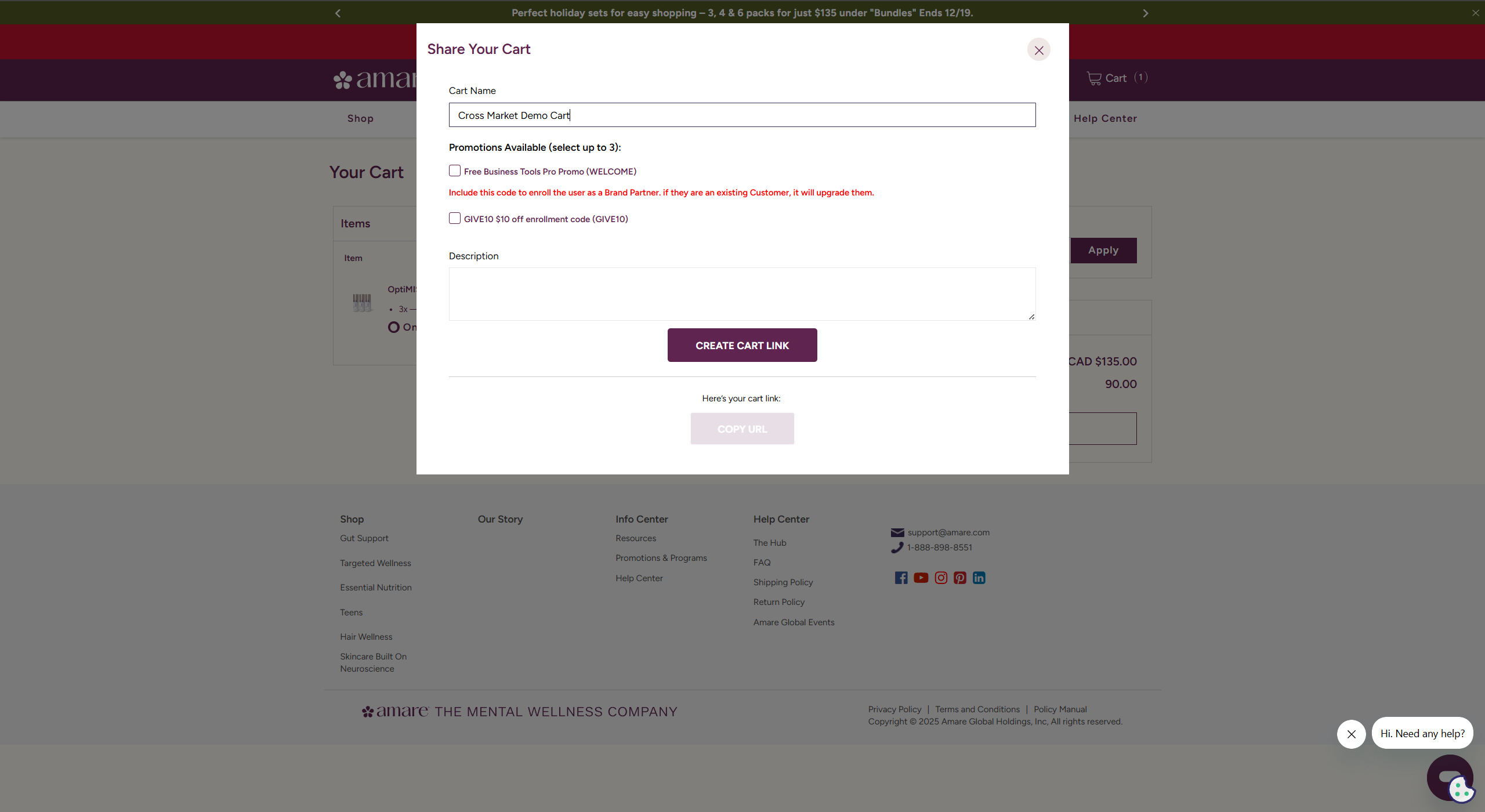
Create Your Shareable Cart Link
Click the Share Cart button, enter a name for your cart, and click "Create Cart" to generate your shareable link for customers in that market.
What You Can Do in Share-Only Mode
- ✓Add products available in that market
- ✓Apply promo codes valid for that market
- ✓Configure dynamic kits and bundles
- ✓Add BP membership fee item for Brand Partner enrollment/upgrade offers
- ✓Generate share links for Customer or BP enrollment
Checkout Restrictions
In Share-Only Mode, the normal checkout process is disabled to protect your account:
- ⚠The "Checkout" button becomes "Share Cart"
- ⚠No payment selection, account creation, or shipping method selection
- ⚠Any attempt to access checkout pages shows: "Checkout is disabled while viewing another market. You can create a share link instead."
How to Exit Share-Only Mode
Click the "Leave Share-Only Mode" button in the banner to return to your home market. This will:
- ✓Clear your Share-Only Mode cart
- ✓End the Share-Only session
- ✓Return you to your assigned home market
- ✓Keep you logged in to your account
🌍 Best Use Case: Global Business Growth
Share-Only Mode is perfect for building your team across enabled markets. Create enrollment share links to help prospects join as Brand Partners or Customers. Great for social media campaigns targeting specific countries!
Enrollment Promo Codes: Attach Special Offers to Your Links
A new feature that lets you attach enrollment promo codes to your shared cart links—without typing. Perfect for promoting special offers to new customers!
What are Enrollment Promo Codes?
Enrollment promo codes like WELCOME and GIVELOVE are special first-order promotions that cannot be applied to a new account's cart.
- ✓Attach special enrollment promos with simple taps—no typing required
- ✓Recipients automatically get the promo applied if they're eligible (new enrollment/first order)
- ✓Maintains the 3 promo code maximum per order
How to Use Enrollment Promo Codes
- 1Build your cart with the products you want to share
- 2Click "Share Your Cart" to open the share modal
- 3In the "Enrollment Promotions (for new accounts)" section, tap the promo codes you want to attach
- 4Copy and share your link—the promos are automatically included
Available Enrollment Codes
The following are example enrollment promo codes that can be attached to your shared links. Different markets may have different codes, where applicable:
Grant 1 year Brand Partner membership for Free
Receive a discount on the first order
What Happens When Recipients Open Your Link
When someone clicks your shared link with attached enrollment promos:
- ✓If eligible (new enrollment/first order): The promo is automatically applied to their cart
- →If existing account: The promo is not applied, but the cart loads normally with all products
- →If promo not applicable: The cart loads normally without the promo—no error messages
Important Notes
- ℹThese promos only work for NEW accounts/first orders—existing customers won't see the discount
- ℹYou can attach multiple enrollment promos, but the 3 promo maximum per order still applies
- ℹThis is separate from your standard promo codes—it specifically handles enrollment-only promotions
🎁 Best Use Case: New Customer Promotions
Perfect for social media campaigns, welcome offers, and any time you want to give new customers an automatic discount. Share your cart link with WELCOME or GIVELOVE attached, and new customers get the special offer without needing to remember a code!
What's Coming Next
We're continuously improving the Shareable Cart experience. Here's what's on the horizon:
- •Further improve checkout speed and ease of use
- •Prevent new account errors when customers leave mid-checkout
- ✓✅ Share-Only Mode is NOW LIVE! Build carts for enabled markets
- ✓✅ Enrollment Promo Codes are NOW LIVE! Attach WELCOME and GIVELOVE to your share links
- •Provide one simple and consistent way to share carts
- •Allow customers to edit their shared carts before checkout for fewer mistakes and more flexibility
Ready to Share?
Start creating shareable cart links for your customers today, or explore other sharing methods.